
How to Log In to Your Snapchat Account and Take It Over
October 20, 2026
BuySnapchat Help· Customer support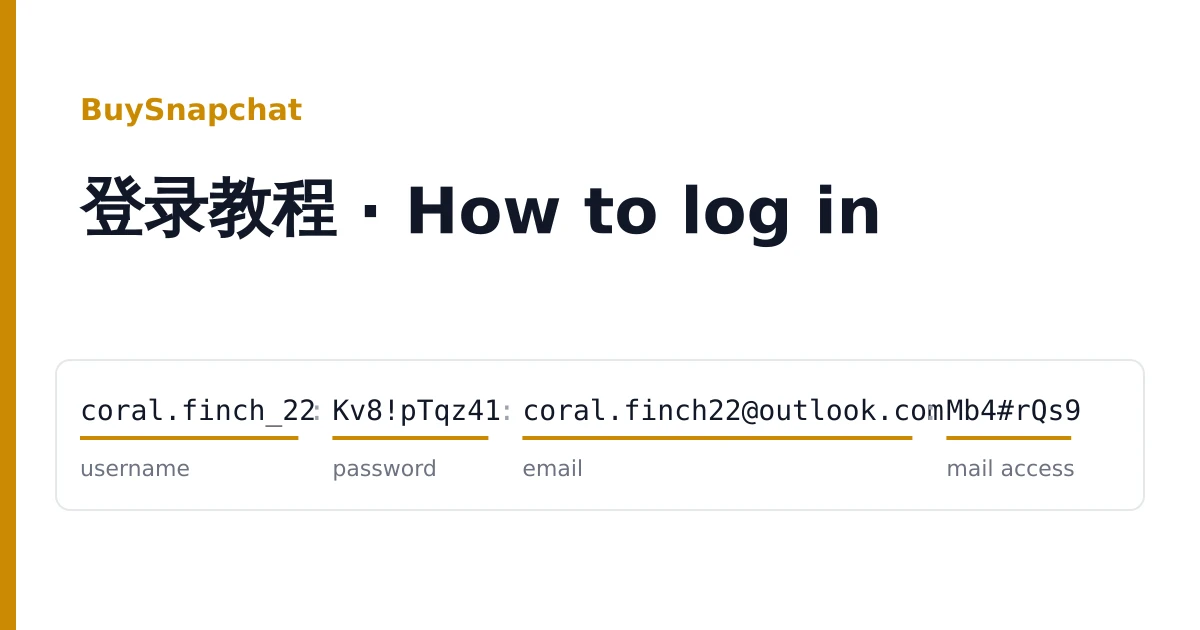
Every Snapchat account you buy here is delivered as a single line on your order page. Open the order from your dashboard to copy the lines or save them as a text file, and keep that file private: the line is enough to take over the account.
The steps below follow the order that avoids trouble: read the line, check the profile from outside, sign in, then replace the seller's details with yours.
Reading the line
The fields are separated by tabs, so in most editors they look like wide spaces. A typical line, with made-up values:
coral.finch_22 Kv8!pTqz41 coral.finch22@outlook.com Mb4#rQs9| Field | What it is | What to do with it |
|---|---|---|
| 1 | Snapchat username | Sign in with it, and use it in the profile link below. |
| 2 | Snapchat password | Paste it at sign-in. It is case-sensitive. |
| 3 | Email address | The address Snapchat has confirmed for this account. |
| 4 | Mailbox access | Either the password of that mailbox, or a web address that shows codes sent to it. |
If the fourth field starts with https://, it is the code page: open it when Snapchat sends a code to the email, and the code appears there without signing in to the mailbox. A few lines have only three fields; on those, sign in with the username and password alone.
On listings with two-factor, the line carries one more item. A long run of capital letters and digits is a 2FA key; short groups of digits or letters are backup codes.
Open the profile link before signing in
Type https://www.snapchat.com/add/ followed by the username into a browser, for example https://www.snapchat.com/add/coral.finch_22. You do not need to be signed in.
- The profile page loads: the account exists and is active. Go on to sign in.
- The page says the user cannot be found: stop there. Take a screenshot and report the line from your order page. Signing in will not change this.
Signing in
- Open the Snapchat app and tap Log In, or go to Snapchat for Web at web.snapchat.com.
- Enter the username from field one. Snapchat also accepts the email, but the username is more reliable for a delivered account.
- Paste the password from field two, without the tab or any space next to it.
- If Snapchat asks for a code sent to the email, read it in the mailbox (field four is its password) or on the code page (field four is a web address).
- If it asks for a two-factor code and your line has a 2FA key, paste the key into https://checkkit.net/en/online-2fa-code-generator and enter the six digits it shows before they change. If your line has backup codes instead, type one of them; each works once.
Replacing the seller's details with yours
Mailboxes in these deliveries are at Outlook, mail.com, onet.pl or Gmail. If you have the mailbox password, sign in there first and check that Snapchat's mail arrives. Then, in Snapchat's settings, change the email to an address you own and confirm it from the link Snapchat sends. A code page cannot be handed over, so on those listings changing the email is the first thing to do.
Password
Change it to one only you know. That signs out every other session on the account.
Two-factor
Turn on two-factor authentication with your own authenticator app. If the account came with a 2FA key or backup codes, the seller has seen them: switch two-factor off and on again so Snapchat issues new ones, and keep the new backup codes in a password manager.
Snap's terms do not allow accounts to be sold or handed over, and Snap can ask any account to verify again. Use the account within Snap's Community Guidelines; we give no advice on getting around them.
When the sign-in does not work
Wrong username or password
Copy each field again on its own; a tab carried along with the password is the usual cause. Try once more, then stop: repeated failures can lock sign-in for a while.
Snapchat sends a code to an email you cannot open
On three-field lines there is no mailbox access. Do not keep retrying; report the line.
"Account locked" after signing in
Screenshot the message before doing anything else.
Reporting it
Open a ticket from your order page within the warranty window on the listing, with the username, what you tried and the screenshot. Signing in does not void the warranty; locks after bulk or automated activity are not covered. Growth orders (followers, story views, likes) never need any of this: they take a public link only. To choose your next listing, see the catalogue or the home page.